

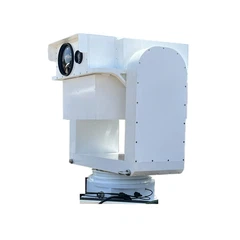
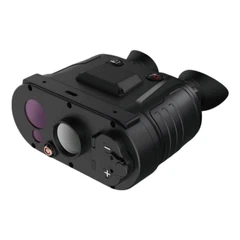
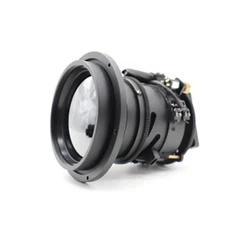
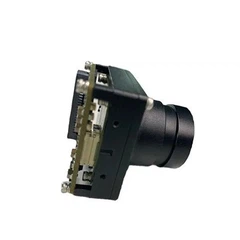
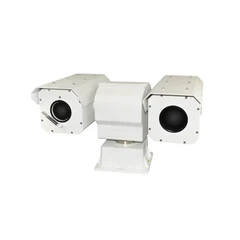
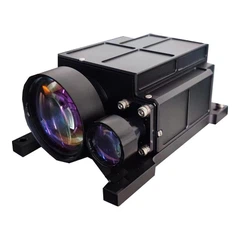
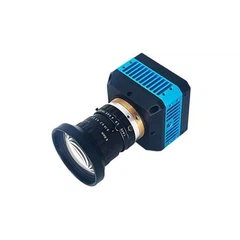

Configuring the software for Network LWIR (Long-Wave Infrared) Cores is a crucial step to ensure optimal performance and functionality. As a supplier of Network LWIR Cores, I understand the importance of providing clear guidance on this process. In this blog post, I'll walk you through the key steps and considerations for configuring the software associated with these cores.
Understanding Network LWIR Cores
Before delving into the software configuration, it's essential to have a basic understanding of what Network LWIR Cores are. These cores are designed to detect and capture long-wave infrared radiation, which is emitted by all objects with a temperature above absolute zero. This technology is widely used in various applications, including surveillance, security, and industrial monitoring.
Network LWIR Cores are typically integrated into systems that require real-time monitoring and analysis of thermal images. The software plays a vital role in controlling the core, processing the captured data, and presenting it in a user-friendly format.


Prerequisites for Software Configuration
Before you start configuring the software for your Network LWIR Core, make sure you have the following:
- Hardware Setup: Ensure that the Network LWIR Core is properly installed and connected to your system. This may involve connecting the core to a power source, a network interface, and any other necessary peripherals.
- Software Installation: Download and install the latest version of the software provided by the manufacturer. This software is specifically designed to work with the Network LWIR Core and may include features such as image processing, calibration, and network configuration.
- Network Connectivity: Ensure that your system has a stable network connection. The software may require access to the internet for updates, remote monitoring, and data sharing.
Step-by-Step Software Configuration
The following steps outline the general process for configuring the software for a Network LWIR Core:
Step 1: Launch the Software
Once you have installed the software, locate the application icon on your desktop or in the Start menu and launch it. You may be prompted to enter your login credentials if the software requires authentication.
Step 2: Connect to the Network LWIR Core
In the software interface, look for an option to connect to the Network LWIR Core. This may be a button labeled "Connect" or "Discover Devices." Click on this option, and the software will search for the core on the network.
If the core is detected, select it from the list of available devices and click "Connect." The software will establish a connection with the core and retrieve its configuration settings.
Step 3: Configure Image Settings
After connecting to the core, you can configure the image settings to optimize the quality of the thermal images. This may include adjusting the gain, offset, and contrast of the image. You can also set the color palette to display the thermal data in a way that is most useful for your application.
Some software may also allow you to adjust the resolution and frame rate of the images. Higher resolution and frame rates can provide more detailed and real-time information, but they may also require more processing power and network bandwidth.
Step 4: Set Up Calibration
Calibration is an important step to ensure accurate temperature measurements. The software may provide options for both manual and automatic calibration.
Manual calibration involves using a reference object with a known temperature to adjust the calibration parameters of the core. Automatic calibration, on the other hand, uses built-in algorithms to calibrate the core based on the ambient temperature and other environmental factors.
Follow the instructions provided by the software to perform the calibration process. Make sure to calibrate the core regularly to maintain accurate temperature measurements.
Step 5: Configure Network Settings
If you plan to use the Network LWIR Core for remote monitoring or data sharing, you need to configure the network settings. This may include setting up the IP address, subnet mask, and gateway of the core.
You can also configure the network protocol and port number to ensure secure and reliable communication between the core and other devices on the network. Some software may also support features such as DHCP (Dynamic Host Configuration Protocol) for automatic IP address assignment.
Step 6: Set Up Alerts and Notifications
To stay informed about important events or changes in the thermal data, you can set up alerts and notifications in the software. This may include setting temperature thresholds and configuring the software to send an email or SMS alert when these thresholds are exceeded.
You can also set up motion detection alerts to notify you when there is movement in the monitored area. This can be useful for security applications.
Step 7: Save and Apply Configuration
Once you have configured all the settings to your satisfaction, save the configuration settings in the software. You can then apply these settings to the Network LWIR Core to make them effective.
Some software may also allow you to save multiple configuration profiles, which can be useful if you need to switch between different settings for different applications or environments.
Advanced Configuration Options
In addition to the basic configuration steps outlined above, some software may offer advanced configuration options for more experienced users. These options may include:
- Image Processing Algorithms: Some software may provide advanced image processing algorithms to enhance the quality of the thermal images. These algorithms can remove noise, improve edge detection, and perform other image enhancement tasks.
- Data Analysis and Reporting: The software may include features for analyzing the thermal data and generating reports. This can be useful for identifying trends, patterns, and anomalies in the data.
- Integration with Other Systems: Some software may support integration with other systems, such as video management systems (VMS) or security information and event management (SIEM) systems. This can allow you to combine the thermal data with other types of data for more comprehensive monitoring and analysis.
Troubleshooting Common Issues
If you encounter any issues during the software configuration process, here are some common problems and their solutions:
- Connection Issues: If you are unable to connect to the Network LWIR Core, check the network connectivity and make sure that the core is powered on and properly configured. You may also need to check the firewall settings on your system to ensure that the software is allowed to communicate with the core.
- Image Quality Issues: If the thermal images are blurry, noisy, or have incorrect color palettes, check the image settings and calibration parameters. You may need to adjust the gain, offset, and contrast settings or perform a new calibration.
- Software Compatibility Issues: If the software is not working properly with the Network LWIR Core, make sure that you are using the latest version of the software. You may also need to check the compatibility list provided by the manufacturer to ensure that the software is compatible with your specific core model.
Conclusion
Configuring the software for Network LWIR Cores is a relatively straightforward process, but it requires careful attention to detail to ensure optimal performance. By following the steps outlined in this blog post, you can configure the software to meet your specific needs and get the most out of your Network LWIR Core.
If you have any further questions or need assistance with software configuration, please feel free to contact us. We are a leading supplier of Network LWIR Cores and can provide you with the support and expertise you need to successfully implement your thermal imaging solution.
For more information about our products and services, you can also visit our website to explore our range of Cooled MWIR Load For SC-TK5 EO TURRET, RF Sensors, and 384 640 Small Mini Size Uncooled LWIR Shutterless Thermal Core.
References
- Manufacturer's User Manual for Network LWIR Cores
- Technical Documentation on Thermal Imaging Technology
- Industry Standards and Best Practices for Thermal Imaging Applications